Showing posts with label EMO. Show all posts

Thursday, 3 April 2014

EMO UPDATE 01.04.2014 RELEASED BY CEPT

EMO Update 01.04.2014 By CEPT

  • Just for info
Meghdoot 7 Update 9.1 has been released by CEPT recently for the main purpose of COD Disaster Recovery Option. this version was tested in many Post Offices and finally Released the latest version of MM 7 Update 9.1 on 29.03.2014.

-----------------------------------------------------------------
CEPT Release eMO Updates 01.04.2014 for eMO Office name and its Pincode updation in eMO Module. 

Procedure to Update eMO dated 01/04/2014

  • Download Attached eMO updation exl from PoTools / CEPT FTP.
  • Execute eMOOffices and eMOPincodes exls using Script Tool.exe.
  • It may take few minutes to Upgrade the database because it contains the detail of eMO Offices all over India.

Download

CEPT FTP:

PoTools

Saturday, 21 December 2013

EMO AND EMO CLIENT UPDATE DATED 20/12/2013

Update EMO And EMO Client Dated 20.12.2013

In some offices errors are noticed during transmission. To overcome such issues some modifications were made in eMO/eMOClient Application.

Procedure To Be Followed 

  1. Stop eMO, eMOClient and other eMO related applications.
  2. Take the backup for eMO database and make a copy of existing eMO/eMOClient exe in a safe location
  3. Make sure that your office is upgraded to Update 8 and then IFS update. If not updated then do it sequentially (first update 8 then IFS update).
  4. Run the eMO_ErrorAudit.exl and eMO20122013.exl. Once it is successful, copy eMO.exe and eMOClient.exe in the corresponding installation folders
  5. Run the applications and check for any error.
  6. If any issue please mail to support@ceptmysore.net

Download

Direct Download Link: CEPT FTP

Saturday, 23 November 2013

IFS EMO UPDATE 22 NOV 2013

PTC Mysore release new updates in respect of eMO Client software : IFS Update

Contents:
  • Brief Description
  • Pre-Requisites
  • Contents
  • Upgrade Instructions

New Features 
Brief Description

Hither to, for downloading an urgent IFS Money Order, the Operator has to enter the following details n eMO Client software:
a) Complete Name of Payee
b) Complete Name of Sender
c) Money Order Number

Now as per the orders of Directorate (IR Division), all the Urgent IFS Money Orders are to be downloaded by entering the Money Order Number alone. It was also ordered by Directorate (IR Division) that there should be provision to return an Urgent IFS Money Order, if there is mismatch between the Payee Names as available on the Money Order form and the ID Card produced by the Payee.Accordingly suitable software modifications have been done in eMO Clinet and Postman modules. Hence this release. 

Pre-Requisites


a) Update-8 to Meghdoot 7.0 available in ftp site at ftp://ptcinfo.org/Meghdoot7/Updates/.

Contents

This Update contains the following applications:
1  Postman
2  eMO Client

Upgrade Instructions
  • All eMO Delivery Post Offices have to implement this patch.
  • Please take backup of all related databases after completion of the day’s work before proceeding for going for up-gradation of this update.

Upgradation Procedure

  Postman Module
  1. Replace existing Postman.exe with new one.
  2. Replace existing EMODelivery.dll with new one.
  3. Replace existing EVPDelivery.dll with new one.
  4. Run Postman.exl using Script tool
  5. Register both EMODelivery.dll and EVPDelivery.dll

eMO Client Module
  1. Replace existing eMOClient.exe with new one.
  2. Run emo-1.exl and emo-2.exl using script tool

New Features in IFS Update 22.11.2013

eMO Client Module:

1. Change of Input screen for downloading Urgent IFS eMO:

The operator of eMO Client software has to enter the Money Order Number alone for downloading the Urgent IFS Money Order from eMO Central Server. The new screen looks like


Postman module:

1. Payee Name mismatch – Return of downloaded IFS Money Order to Sender

The Urgent IFS Money Order printed in eMO application will be available automatically in Window Payment screen. Hither to, ‘Paid” is the only option available in r/o Urgent IFS Money Order in Window Payment Screen. In order to handle the situation where the Postmaster observes mismatch between the Name available on the Printed IFS MO form and that available on the ID Card produced, a new option “Payee name Mismatch” is provided in Window Payment Screen of Postman module in order to return such Money Orders unpaid.


If the Postmaster want to return the Money Order due to mismatch in the names as mentioned above, the “Payee Name Mismatch” option has to be clicked. On clicking the same, a blank text box appears for entering the Payee Name as available in the ID Card. The Operator has to enter the Payee Name as available in the ID Card and click on “Return to Sender”. Then the Money Order will be returned to Sender (after Window Submit Account). 


Download 

Software Package

Release Document

Tuesday, 1 October 2013

New Certificate for eMO, ePayment, Accounts MIS Clients

After 29/09/2013 eMO, ePayment, Speed Net Communication and Accounts MIS Clients were not transmitting due to PTC Mysore certificate has been expired. 


Error Message: Error in Communication The underlying connection was closed: Could not establish trust relationship for the SSL/TLS secure channel.


Solution:

Solution provided by PTC Mysore.

1. Download Attached Certificate issues.zip file from PoTools.

2. Kindly register the certificate by double clicking on the file RegisterCACft.exe

Download Link:


(or)


(or)

Source : http://potools.blogspot.in/

Saturday, 29 June 2013

eMO Version 7 Update 8

Read me for eMO Version 7 Update 8 
=================================

Ensure that your eMO database was already upgraded with that of available in rar file 
at ftp://ftp.ptcinfo.org/Meghdoot7/Updates/Update6toMeghdoot7 .

New Features:
------------- --- 
  1. Handling of CPSMS
 

Applications upgradation Procedure:
------------------------------------------

 a. Stop eMO Client application.
 b. Replace existing emoclient.exe available in installation path with the new version provided
 

Database upgradation Procedure (Using Script tool):
-------------------------------------------------------------

 a. Take the backup of NREGAeMO database.
 b. Stop eMO Client and SanchayPost applications to ensure that NREGAEMO database                  is not in use.   
 c. Double click on the ScriptTool.exe.
 d. Give the Database Server Name.Check WindowsAutentication Checkbox if required.
 e. Execute the script NregaemoVer7Update8.exl.

To Download from FTP

Thursday, 14 March 2013

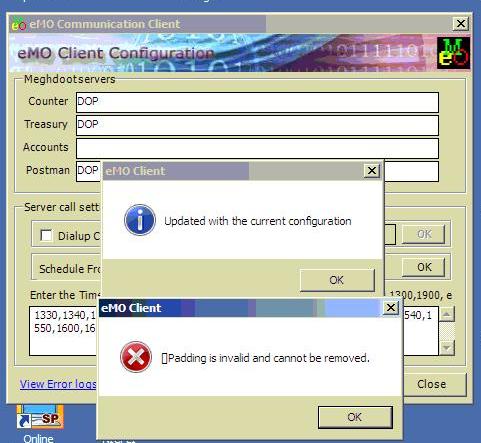
eMO Error "Root element is missing"


Error "Root element is missing"
If error comes like "Root element is missing "
it means your configure.xml file corrupted
Solution:==>>
Go to other system and installed eMOClient 
open Config.xml in notepad
Copy the content of config.xml
Paste it in error system where the error is root missing is giving
file will be available at "C:\Program Files\eMOClient" 
now open config.xml of eMOclient and Give server name as your server and save it.
now run the client....it will work properly
OR
Manually you can solved 
Go to your system "C:\Program Files\eMOClient" open this in notepad and edit this file "Config.xml" give this
replace server with your server name.
<EMOCOMMUNICATION>
<EMOSERVER>server</EMOSERVER>
<COUNTERSERVER>SERVER</COUNTERSERVER>
<TREASURYSERVER>SERVER</TREASURYSERVER>
<ACCOUNTSSERVER>SERVER</ACCOUNTSSERVER>
<POSTMANSERVER>SERVER</POSTMANSERVER>
<CALLINGHOURS>1014,1024,1034,1044,1054,1104,1114,1124,1134,1144,1154,1204,1214,1224,1234,1244,1254,1304,1314,1324</CALLINGHOURS>
<LASTCALLED>14/02/2013 10:34:59</LASTCALLED>
<NREGASERVER>SERVER</NREGASERVER>
<ISSANCHAYAVAILABLE>True</ISSANCHAYAVAILABLE>
</EMOCOMMUNICATION>

eMO Client Error??? Error no 701 Login failed for user NRega


While running the emo client in update 5 and 6 an error or message occurs. It shows that "Cannot open database requested in login NREGAEMO. Login failed for user NREGA". While sending this error . The solution provided by CEPT mysore is given below.

Click here to download solution

Unzip the file and copy it to DBAnalyzer folder and run it from the same location. This will solve your problem.

NB. Please backup the database before running the solution

Courtesy : http://saparavur.blogspot.in/

Friday, 18 January 2013

Error in emo update 5


After updating MM7 with update 5, while running eMO client an error as shown "[701] Login faild for user 'nrega' "


Wednesday, 2 January 2013

Update 5 to Meghdoot 7.0

Update 5 to  eMO client has been put in PTC ftp site and the link isftp://cept.gov.in/Meghdoot7/Updates/Update-5(NREG)/
    
A Readme file containing the instructions for installation is also available there.


Upgradation procedure for NREG in c/w eMO Client


·         Ensure that your emo database is already upgraded with version 7 update 3. In offices having Sanchay post latest version installed and NREGAEMO database is available, please upgrade the same with NREGAEMO script provided.
·         Stop eMO client exe if running. Replace existing eMOclient.exe available in eMO client installation path with new eMO client exe provided in upgradation.
·         For the first time, when you run new eMO client exe, it will prompt to enter Sanchay post server details as below.
·         Enter Sanchay post server name if Sanchay Post server is available in that office else select not available and click on OK.
Your system will now be ready for receipt of Sanchay post related files through eMO client from central server if server details were provided.

For adding Sanchay post codes, option is available in Divisional administrator web login of eMO. Reports regarding NREG are available under Reports menu.


Please select the eMO Office Name and update Sanchay post code used for that PO.

Saturday, 28 July 2012

eMO new installation-Error in ommunication

When the eMO application is installed for the first time in new site, bulk payees will not be updated and while running the communication, the following error may come.


Solution from PTC: Run eMOBulkPayees23042012.exl script file using script tool.
Download

Thursday, 12 July 2012

eMO Communication Error


Sir,
Please do the following carefully.

warning ! Please do the following carefully.


1. stop the eMO Client application if running.
2. Open the data folder Inside RXD Folder of eMO client installation path.
3. Select details option in View menu on the top of explorer.(View->details). All files will be shown with file type and date modified.
4. Sort the files by modified date(Click on date modified column once or twice).
5. Select and cut all the files received on oldest date and time and  copy into to seperate folder on desktop.( these file might be corrupted).
6. Delete all the files with file type qsq_tmp in data folder of rxd.
7. start the eMO client application.
8. Check the eMO after 10-15 minutes.

Monday, 28 May 2012

eMO PAID RETURN SOFTWARE

eMO Paid return software


Sunday, 19 February 2012

Object reference not set error while doing paid verification in emo

Solution:
 Please ensure that eMO Account heads are created properly. SubAccount and SupplySubaccount databases are running and correct treasury server name is given while configuration. Ensure that SOcodemapping is done correctly. Ensure that HO Account date and SOaccount dates are entered correctly both in eMO operator and subaccount modules.

Steps for Updating Paid Date of eMO through disaster recovery option


In Some Sub offices Postmasters found very difficult in updating the paid  date of eMO. The Easy method of updating the paid date of eMO through disaster  recovery module is shown below.


Steps for Updating Paid Date of eMO The Supervisor has to request for disaster recovery data through Transactions > Disaster
Recovery > Disaster request data Menu Option. There he has to select the pincode for which
disaster data is required and enter remarks.
 Once eMO Communication is run, disaster request will be sent to central server and the data
for disaster recovery will be received in the next or subsequent calls.
 Once the data for disaster recovery is received from central server, the Operator has to go to
DataEntry >Disaster recovery > Disaster paid entry option. There he has to select the office for
which disaster paid entry is to be done. Select PNR number and enter the paid particulars.

 Thereafter, the supervisor has to perform disaster paid verification in respect of disaster paid
entries done by the operator through Transactions > Disaster Recovery > Disaster paid
verification option.
 After this when eMO Communication is run, disaster paid entries data will be transmitted to
Server and paid data will be updated.


courtesy:nfpealuvadivision.blogspot

Saturday, 14 January 2012

SMS TRACKER FOR EMO AND SPEED POST


Department has introduced facility to track the eMO and Speed Post Articles through SMS from 1.10.2009. The message format is given below for information:- For EMO
EMO space eMOPNR_No or MO space eMOPNR_No to 55352
For Speed Post Artcle
SP space SpeedPostArticleNo or EMOS space SpeedPostArticleNo to 55352
For other details visit http://indiapost.gov.in

Monday, 9 January 2012

eMO Communication Error


Sir,
Please do the following carefully.

warning ! Please do the following carefully.


1. stop the eMO Client application if running.
2. Open the data folder Inside RXD Folder of eMO client installation path.
3. Select details option in View menu on the top of explorer.(View->details). All files will be shown with file type and date modified.
4. Sort the files by modified date(Click on date modified column once or twice).
5. Select and cut all the files received on oldest date and time and  copy into to seperate folder on desktop.( these file might be corrupted).
6. Delete all the files with file type qsq_tmp in data folder of rxd.
7. start the eMO client application.
8. Check the eMO after 10-15 minutes.

Monday, 2 January 2012

If eMO Communication is running, and no eMO is receiving


Please check the following points.
1. Check whether the machine is virus infected. Scan it with an updated anti virus package.
2. open eMOCommunication.exe.config file in eMO communication foldeer (C:\Program Files\eMOClient) if the eMO client is installed in C drive. Check whether the fourth line is "emomsg.ptcmysore.gov.in" />"
3. Open Config.xml in eMO communication foldeer (C:\Program Files\eMOClient) if the eMO client is installed in C drive.Check whether the Thrird line is "https://services.ptcmysore.gov.in/emo/"
4. Check the internet connectivity.

Pending eMO Paid Updation

Steps involved in clearing pendency of eMO


  Ø Download the pending eMO detail files
  Ø Check the date of payment with reference to delivery slip
  Ø If already paid, request data through Disaster Recovery option available in Supervisor option of eMO module 
  Ø Once data is received, feed date of payment
  Ø Supervisor has to authorize the data of payment
  Ø In case of eMOs paid at attached SOs, if the operator has already made SO paid data entry, data will not be available in the Disaster data entry. In such cases, the data entry already done by the operator has to be deleted first (by selecting HO account date) and then disaster paid data entry has to be done and authorized by supervisor
  Ø In case of eMOs paid at local office, if submit account is not done after issue of MO to postman/Postman returns were not taken, data will not be made available for disaster paid data entry. Such cases have to take up the matter with PTC Mysore, by forwarding the eMO database backup and the list of PNR Numbers
  Ø If eMOs data is not at all received by the office of payment, Request resend option available in the eMO website has to be used by logging in as divisional administrator.
  Ø In case of eMOs booked with wrong date, Payment has to be made by issuing Duplicate MO. Once the DMO is paid, the paid date has to be given by the Divl. System Administrator in the eMO web site