Thursday, 10 November 2011

HSheet for History Sheets


Hsheet is an Access based tool to store records of Computers,Printers,Scanners,UPS,CDs etc and to obtain History Sheets based on the records.

At Sub Offices,the data entered can be exported as csv file and sent to DO through email.


The CSV file sent from SOs can be imported at DO. Before importing data please remove first 3 rows (including one empty row) from the CSV file.

Provision for Further expenditure incurred on maintenance is not given. For this purpose, Expenditure sheet can be printed and manual entries can be done.

The Access database is password protected. The password is doputtur

To download the software (11 MB) click the link below.

How to Find Any PC’s Serial Number and Model Number by DOS Command


Its always difficult to find model number and serial number of branded Computers like HP which we really need sometimes to download the drivers for particular Model PC, but do you know with simple DOS commands we can able to retrieve any Computer’s serial and model number.
1.Open Command prompt, and type wmic bios get serialnumber to retrieve serial number of PC.
2.Type wmic csproduct get name to get Computer model name and number.

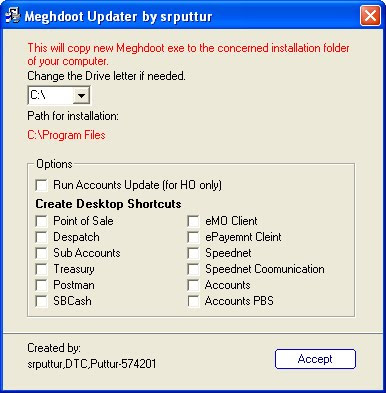
Meghdoot 7 Updater

Step:1.Download Scripts.zip.This contains all script files and Script tool by PTC Mysore.Upgrade the databases by these script files using Script Tool.



Click below to download Script files.

Step:2.Download MMUpdater.zip.This contains Updates folder and MMUpdater.exe.Run MMUpdater.exe.If your installation drive is not C then select the Drive. Click OK. Select the shortcuts if any needed to be created in Desktop,check the concerned. Click Accept.

Done.

Click below to download MMUpdater .

Set sa password in SQL Server Management Studio Express


During the installation of SQL Server,we select mixed mode authentication and give complex password for sa.Sometime we may need to change the password of sa.
To change the password of sa follow the below steps.

1.Open SQL Server Express Management Studio.

2.Connect to SQL Server using windows authentication.

3. Expand the server and choose security and expand logins.

4. Right click on sa, from properties modify the password and confirm password

5. Uncheck Enforce password policy.

6.Click OK

Postman Day End Error


In Postman module, while doing day end, if the above errors are coming, then it is due to non connectivity to eMO database. Installing eMO and creation of eMO database will solve this problem


Saturday, 5 November 2011

ULTERNATE SOLUTION OF GENERIC HOST.........


Solution 1:     

  • Go to the start menu
  • Right click “My computer”
  • Click “properties” then the “automatic updates” tab
  • Choose “turn off automatic updates”
  • Restart your computer
  • Go back to start menu and in all programs go to “windows update” you have to be connected to the internet
  • Manually update windows
  • Turn your automatic updates back on

You can also try the following solutions to fix this error:

Solution 2:

  • Go to Run and type regedit
  • Navigate to HKEY_LOCAL_MACHINE >> SYSTEM >> CurrentControlSet >> Services >> Browser >> Parameters
  • Find the key IsDomainMaster
  • Set its value to False
  • Restart the computer


Solution 3:

  • Go to Run and type cmd
  • Type ‘netsh’ in command console then press enter
  • Then type ‘winsock’ and press enter and then type reset
  • Restart the computer