Tuesday, 10 January 2012

PhotoStage Slideshow Software

Create photo slideshow movies and presentations

Creating a photo slideshow has never been easier.
  • Bring your digital photos to life
  • Share memories in an interesting and portable way
  • Easily combine pictures, video clips, music and narration


Slideshow Creator Software

  • Easy-to-use - Drag and drop images to arrange the slides. Or turn a folder of images into a slideshow with Quick Create.
  • Full of effects - Includes zoom, crop, fade, panning, zooming and more to bring your photos to life
  • Enhance your photos - Touch up or enhance your photos and videos with optimization tools
  • Multimedia presentations - Add thousands of photos and video clips, then add captions, music and narration
  • Easy to share - Burn slideshows to DVD, save as video files, or optimize for the web and portable devices 
 

Complete Photo Optimization

  • Fine tune brightness, color and saturation
  • Crop, rotate and flip photos easily
  • Add text captions to individual slides
  • Add video clips for a complete slideshow presentation
  • Preview your changes in real time

Share Slideshows with Family and Friends

  • Burn slideshows to DVD and watch on your TV
  • Upload directly to YouTube or Facebook and share online
  • Save to PSP, iPod, iPhone or 3GP mobile phones
  • Export video slideshows as Flash
  • Supports full HD (720p, 1080i or 1080p)

System Requirements

  • Windows XP/Vista & Windows 7


Download PhotoStage Slideshow Creator

msconfig - System Configuration


msconfig - is the Microsoft System Configuration Utility. In Windows Vista and Windows 7 it is called as ‘System Configuration’. This is a tool that comes with the Windows Operating System. For Windows 2000 users this tool can be downloaded from microsoft website. This is used to configure and maintain your Windows System. In this tutorial we can see how to use this tool.
To start this tool goto Start->Run and type ‘msconfig’. A new window with five tabs will open.
  • General Tab: This tab has three sections. Normal Startup, Diagnostic Startup and Selective Startup. When Windows functions normally we use Normal Startup. When the system doesnt function properly, we can use diagnostic startup to diagnose the issue and to troubleshoot. If we want windows to start with specific programs then we can choose Selective Startup.
  • Boot Tab: This tab shows the operating systems installed in the computer. Additionally we can choose options such as ‘safe Boot’, ‘Boot log’, ‘Time out delay’. If you are a new PC user then it is best to leave this tab without any changes.
  • Services Tab: This tab lists all the services installed in this PC with the details such as whether the service is running or stopped etc. From here you can enable or disable services. You can check the ‘Hide all Microsoft services’, to hide all essential windows services so that you don’t change them by mistake. From here you can identify unknown services that take up your memory and stop them wherever necessary.
  • Startup Tab: Startup tab shows the list of programs that starts automatically when Windows starts. All system tray programs and programs that run in background will also be listed here. You can see which of these services and programs you don’t need at startup and remove them accordingly. This will speed up your windows startup time.
  • Tools Tab: In the tools tab you can see, System Information, Programs, System Restore etc.

Sanchay Post Updater

This Tool will help you for the first time installation of Sanchay or subsequent installation. Download the file ,unzip and save to CD or Thumb Drive and feel the ease of installation.

=========>>>>> Download-:   Click

India Post Signs MoU with Air India for Logistics Post Air Service


Fifteen Cities to have This Service Initially MoU will be Effective from February 1, 2012

India Post today signed an MOU with Air India for carriage of “Logistics Post Air” Service by Air India. This service will help the customers to send their consignments to different parts of the country, especially to the North-Eastern region without difficulty. This MOU will meet the huge demand for Logistics Post Air Service for hassle free dispatch of consignments to different parts of the country including the North East.
India Post in collaboration with Air India plans to start this service from 15 cities initially to meet the demand from the customers. These cities are Ahmedabad, Agartala, Bangalore, Chennai, Delhi, Guwahati, Hyderabad, Imphal, Kolkata, Lucknow, Mumbai, Nagpur, Patna, Pune and Trivendrum. Of these, three are in the North East. 
India Post will deliver the consignment of Logistics Post Air to Air India at the point of delivery of the departure station and will also collect it at the arrival station. Booking, handling, packing, delivery etc. will be done by the India Post. Air India will only transport the consignment from one station to another station. 
Shri Y.P.S. Mohan, Chief General Manager, Business Development and Marketing, India Post and Shri Harsh K. Pandey, General Manager (Cargo), Air India signed the MoU on behalf of their respective organizations in presence of Shri Santosh Gauriyar, Member (Operations), Postal Services Board and Shri Rohit Nandan, CMD, Air India. 
This service will be extended to other cities in a phased manner. 

SP/ska
(Release ID :79442)

Monday, 9 January 2012

CCS (Leave) (Fifth Amendment) Rules, 2011 - “Seamen’s sick leave”

“In the First Schedule to the Central Civil Services (Leave) Rules, 1972, against Sl.No. (I) in column 2 after the words "Seamen's Sick Leave" the words "Paternity Leave, Child Adoption Leave, Paternity Leave for Child Adoption and Child Care Leave: shall be inserted.”
[TO BE PUBLISHED IN THE GAZETTE OF INDIA, EXTRAORDINARY, PART II, SECTION 3, SUB-SECTION (i)]
Government of India
Ministry of Personnel, Public Grievances and Pensions
Department of Personnel and Training
Notification
New Delhi, the, 27.12.2011.
G.S.R. In exercise of the powers conferred by the proviso to article 302 read with clause (5) of article 148 of the Constitution and after consultation with the Comptroller and Auditor General of India in relation to the persons serving in the Indian Audit Accounts Department, the President hereby make the following rules further to amend the Central Civil Services (Leave) Rules, 1972, namely :-
1. (1) These rules may be called the Central Civil Services (Leave) (Fifth Amendment) Rules, 2011.
(2) In the First Schedule to the Central Civil Services (Leave) Rules, 1972, against Sl.No. (I) in column 2 after the words "Seamen's Sick Leave" the words "Paternity Leave, Child Adoption Leave, Paternity Leave for Child Adoption and Child Care Leave: shall be inserted.
sd/-
(Mamta Kundra)
Joint Secretary
Source: www.persmin.nic.in
[http://circulars.nic.in/WriteReadData/CircularPortal/D2/D02est/13026_4_2011-Estt-L-27122011.pdf]

A more detailed definition is given in the brochure of Central Civil Services (Leave) Rules, 1972 about the Seamen’s sick leave...
47. Seamen’s sick leave
(1) A Government servant serving as an officer, warrant officer or petty officer on a Government vessel may, while undergoing medical treatment for sickness or injury, either on his vessel or in hospital, be granted leave, by an authority competent to grant leave, on leave salary equal to full pay for a period not exceeding six weeks:
Provided that such shall not be granted if a Government Medical officer certifies that the Government servant is malingering or that his ill health is due to drunkenness or similar self-indulgence or to his own action in will fully causing  or aggravating disease or injury. 
(2) A seaman disabled in the exercise of his duty may be allowed leave on leave salary equal to full pay for a maximum period not exceeding three months, if the following conditions are fulfilled, namely:-
(a) a Government Medical Officer must certify the disability;
(b) the disability must not be due to the seaman’s own carelessness or inexperience’
(c) the vacancy cause by his absence must not be filled.
(3) (a) In the case of a person to whom the Workmen’s Compensation Act, 1923 (8of 1923), applies, the amount of leave salary payable under this rule shall be reduced by the amount of compensation payable under Clause (d) of sub-section (1) of Section 4 of the said Act.
(b) In the case of a person to whom the Employees’ State Insurance Act, 1948 (34 of 1948), applies, the amount of leave salary payable under this rule shall be reduced by the amount of benefit payable under the said Act for the corresponding period.

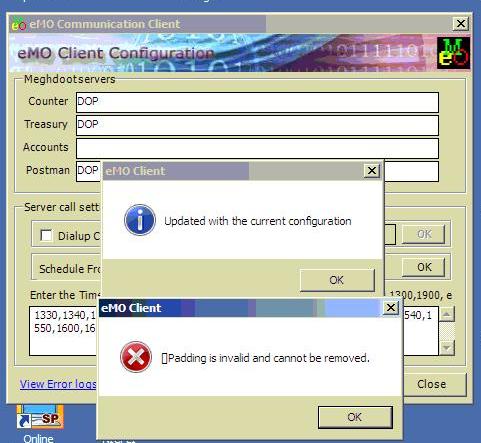
eMO Communication Error


Sir,
Please do the following carefully.

warning ! Please do the following carefully.


1. stop the eMO Client application if running.
2. Open the data folder Inside RXD Folder of eMO client installation path.
3. Select details option in View menu on the top of explorer.(View->details). All files will be shown with file type and date modified.
4. Sort the files by modified date(Click on date modified column once or twice).
5. Select and cut all the files received on oldest date and time and  copy into to seperate folder on desktop.( these file might be corrupted).
6. Delete all the files with file type qsq_tmp in data folder of rxd.
7. start the eMO client application.
8. Check the eMO after 10-15 minutes.